
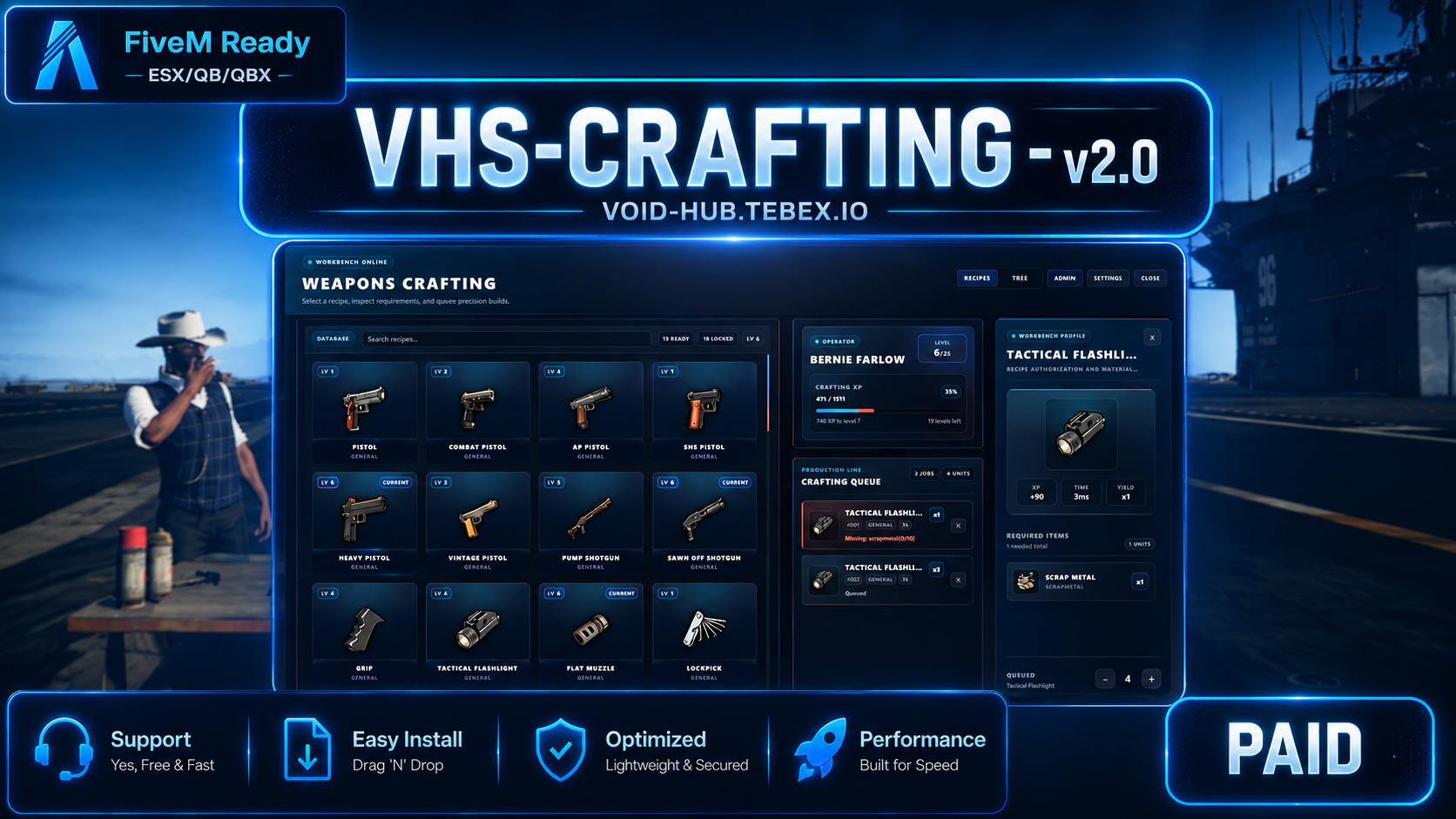
vhs-crafting
24.99
Tax included
VHS-CRAFT v2.4 - ACTIVELY MAINTAINED - OPEN TO SUGGESTIONS OR IDEA
CFX POST
SUPPORT DISCORD
VHS-CRAFT VIDEO
A powerful and flexible crafting system for FiveM servers, designed for complete customization and framework compatibility.
Create advanced crafting stations, recipes, and progression systems that integrate seamlessly with jobs, gangs, or standalone gameplay.
Seamless install into ESX, QBCore, Qbox, huge options and config abilities
FREE SUPPORT IN THE DISCORD
Requirements
-
ESX,QB/QBX all supported
Start those dependencies before VHS Craft.
Installation
1. Place vhs-craft in your server resources folder.
2. Add the resource to server.cfg after dependencies:
ensure oxmysql
ensure ox_lib
ensure community_bridge
ensure vhs-craft
3. Give trusted staff access to the admin editor:
add_ace group.admin vhs-craft.admin allow
4. Restart the server or run:
ensure vhs-craft
5. In game, run:
/craftadmin
Use the admin editor to create crafting tables, place table props, add recipes, set requirements, configure XP, levels, blueprints, restrictions, blips, and portable table options.
Basic Config
Main config lives in:
cfg/server_config.lua
Important settings:
-
Config.AdminAce: ACE permission required for /craftadmin.
-
Config.AdminCommand: command name for the admin editor.
-
Config.AdminIdentifiers: optional direct identifier allow-list if you do not want to use ACE.
-
Config.Gang: choose a gang provider if recipes or tables should use gang restrictions.
-
Config.Placement: placement preview settings. Rotation uses left/right arrow keys, height uses up/down arrow keys.
-
Config.UI: default UI scale, theme, and colors.
-
portableTables: pickup target text/icon for portable crafting tables.
Legacy config files are kept only for compatibility notes:
cfg/config.lua
cfg/tables_config.lua
cfg/lang.lua
cfg/locales.lua
The active install config is cfg/server_config.lua.
Admin Workflow
Most servers should configure crafting through /craftadmin.
Recommended first setup:
- Open /craftadmin.
- Create a table.
- Set the table name, prop model, target label, level settings, and max level.
- Add a location with the placement tool.
- Create recipes for that table.
- Add required materials and craft output settings.
- Save and test as a player.
Tables and recipes are saved to SQL.
After you create data in game, SQL becomes the source of truth.
Optional Seed Data
You can seed first-install tables and recipes in cfg/server_config.lua using:
Locations = Locations or {}

Recepies = Recepies or {}
This is optional.
Once tables or recipes exist in SQL, use the admin editor for live changes.
Controls
Craft table placement:
-
Mouse: aim placement point
-
Left/Right arrows: rotate prop
-
Up/Down arrows: adjust height
-
E: confirm
-
Backspace/Esc: cancel
Player crafting:
-
Open a crafting table through target or 3D text.
-
Select an unlocked recipe.
-
Review requirements.
-
Add it to the crafting queue.
-
Wait for the queue to complete.
Troubleshooting
-
Admin command does not open: confirm add_ace group.admin vhs-craft.admin allow is in server.cfg, then reconnect or restart.
-
Items show invalid in admin: the item name does not exist in your inventory item list.
-
UI does not open: confirm dist/index.html exists and ensure vhs-craft starts without manifest errors.
-
SQL errors: confirm oxmysql is started before vhs-craft.
-
Target does not appear: confirm your community_bridge target/inventory integration is working.